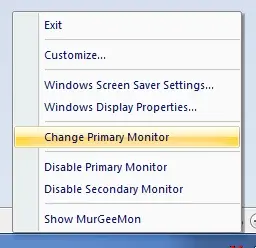
The Dual Monitor Software presented here can be used on Laptop / Desktop Computers running Windows 11, Windows 10, etc. The Software Application allows many more Monitor Control features, apart from allowing to change Primary Monitor. In order to find out what more the software has to offer, please do follow the dual monitor link. Download Change Primary Monitor Video and play it in Windows Media Player to view how to change primary monitor. The procedure outlined here can be used on a Desktop Computer with Dual Monitor Graphics Card, USB Display Adapter or any other way by which 2 monitors can be connected to a Desktop Computer. The Same procedure will be applicable in case you do have a Dual Monitor Setup on your Laptop Computer having an external display.
Primary / Secondary Monitor
The term Primary Monitor referred to here is to a Monitor on which Start Menu is displayed by the Operating System on a computer with more than one Monitors connected together or connected in extended mode. The Primary Monitor comes into effect when you have more than one Monitor(s) connected to your computer with a dual head / multiple head graphics card and from Display Settings , you have configured the Monitors to together display one output or extend the display output across monitors. When you extend your desktop area, the monitor on which taskbar is displayed is referred to as Primary and other Monitor(s) are referred to as Secondary Monitor(s). The Video shown above was shot on a Dual Monitor Computer with External / Secondary Monitor connected with a dual head graphics card and the monitors together extend the display.