How to Use Jump List Software
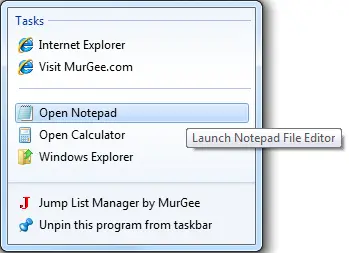
Watch a Video Tutorial about Jump List Software in your media player, or follow the steps below to download, install, and use Jump List Software on your Windows 11 or Windows 10 computer. The software works on both 32-bit and 64-bit systems. By default, it adds sample items to its Jump List, which can be viewed by right-clicking the software's taskbar icon.
- Download digitally signed and free-to-try version of Jump List Software and install it on your Windows computer. Once the free trial expires, you can unlock the software by paying $9.87 and use it on 1 computer for up to 6 months from the date of payment.
- Once installation is complete, launch the software. When you open it for the first time, it automatically adds a few sample items to its Jump List.
- Locate the software's taskbar icon and right-click it to display the sample Jump List.
- The sample Jump List is also shown in the image above.
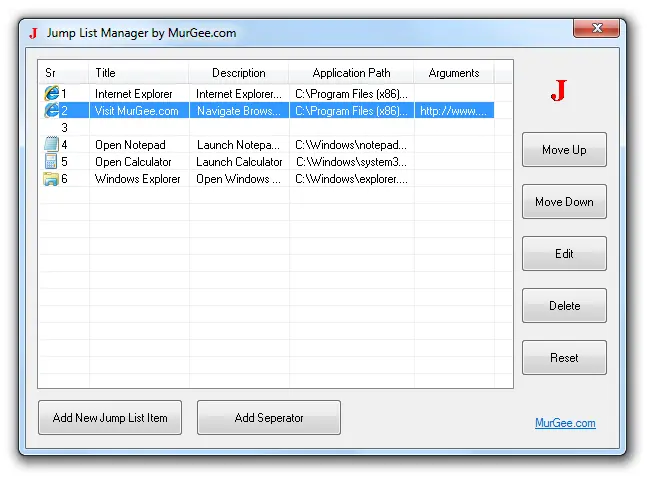
- Now you can use Jump List Software as an editor to customize the initial Jump List—add new items, edit existing ones, and move items up or down in the list. By default, Windows displays 10 Jump List items. You can increase this limit in this software's Settings.
Other Features of Jump List Software
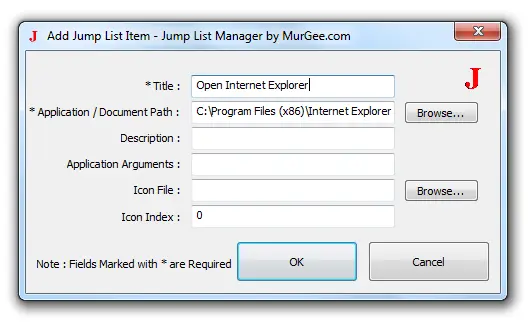
Jump List Software allows you to add new shortcuts or edit existing ones from a single interface. On the main screen of the software, use the buttons labeled Move Up, Move Down, Edit, Delete, and Reset. Remember that you can specify titles and descriptions in any language, not just English. The description you define appears as a tooltip for the corresponding Jump List item. You can also add separators to organize tasks in the list.
You can easily pin the software's icon so that it remains on the taskbar even when the application is closed. Jump List Software only needs to be opened when you want to modify the Jump List.
Whenever you want to launch any of the shortcuts listed in the Jump List, simply right-click the software's icon, point to the desired shortcut, and click it. Download Jump List Software now and make full use of the Jump List feature on Windows 10 and Windows 11.
Explore MurGee.com for keyboard and mouse automation utilities such as Auto Clicker, Mouse Mover, Automatic Typer, and many more software downloads. Note that on systems where Windows displays the taskbar only on the primary monitor, the Jump List Software taskbar icon is accessed on the primary monitor, although its main window can be displayed on any monitor in a dual- or multi-monitor setup.